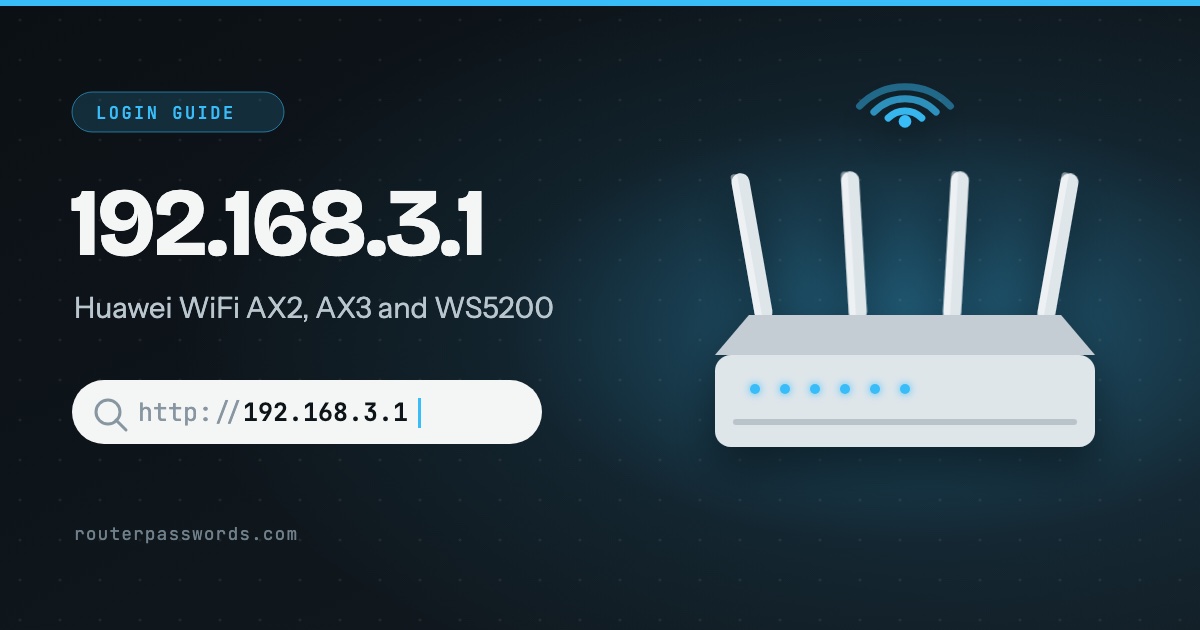
192.168.3.1 is the settings page of Huawei’s home Wi-Fi routers: the WiFi AX2 and AX3 families, the WS5200, the WS318n, the Mesh and Q2 systems, and the Honor Router 3. It asks for one thing, a login password. There is no username, and on most of these routers there is no factory password either, because you create it when you first set the router up.
- Who uses it
- Huawei WiFi AX2, AX3, WS5200, Mesh and Q2 routers, and Honor Router 3.
- Username
- None. The page asks only for a password.
- Password
- The one chosen in the setup wizard, which offers to reuse the Wi-Fi password.
- Not on 3.1?
- Huawei 4G and 5G routers use 192.168.8.1. Huawei fibre boxes use 192.168.100.1.
How to log in at 192.168.3.1
- Connect to the router. Join its Wi-Fi or plug into one of its LAN ports. On a phone, turn off mobile data and any VPN for a minute.
- Type the address. Enter
http://192.168.3.1in the address bar. Huawei says to check the nameplate on the bottom first, because routers customised for a carrier can use a different address. - Enter the login password. On a router that has been set up, that is the password chosen during setup. On a new or reset router, the page starts the setup wizard instead.
- Set both passwords in the wizard. It asks for a Wi-Fi name, a Wi-Fi password and a login password, with a box to use the Wi-Fi password for both. Ticking it is convenient. It also means anyone with the Wi-Fi password can open the settings.
Which routers use 192.168.3.1
Huawei lists these models on its own support pages for the 192.168.3.1 login: WiFi AX2, AX3, AX3 Pro and AX3S, WS5200, WS318n, Router A1, WiFi Mesh, Mesh 3, Mesh 7, Mesh X1 Pro and X3 Pro, Q2 and Q2 Pro, and the Honor Router 3. In our database:
Router and network makers (1)
What the password is
| Situation | Username | Password to try |
|---|---|---|
| Router already set up | None asked | The login password chosen at setup. If the Wi-Fi password was reused, it is the same. |
| New or just reset | None asked | None yet: the setup wizard opens and asks you to create one |
| Some models added with the WPS button | None asked | The management password printed on the nameplate |
Old lists online give admin / admin for 192.168.3.1. We found no Huawei source for it on these routers, and on a router that has been set up it will not work.
Forgot the login password
Try the Wi-Fi password first. Plenty of people tick the wizard’s box, and then the two are the same. If that fails there is no way to read the old one back. Huawei’s answer is a reset:
- Find the button marked WPS/RESET.
- With the router on, press it with a pin for about 8 seconds, until the indicator light goes off.
- Wait for it to restart, connect to the default Wi-Fi name on the nameplate, and open 192.168.3.1. The setup wizard runs again.
Everything goes with the reset, including the internet settings. If your provider gave you a PPPoE username and password, have them ready. How to find your router password has the options to try before you reach for the pin.
Changing the login password
Log in, then go to More Functions, System Settings, Change Login Password. Enter the current one, the new one twice, and save. The HUAWEI AI Life app manages the same router from a phone if the web page is awkward.
192.168.3.1 will not open
- The router is a Mesh+ satellite. If a Huawei router is cabled to another Mesh+ capable Huawei router, it switches itself to bridge mode, and Huawei says its 192.168.3.1 page can no longer be reached. Log in to the main router instead.
- HarmonyOS Connect is on. Huawei names this as another cause, and says to turn it off.
- Your computer has a fixed address. It needs to be on the same range: set it to obtain an address automatically, or give it 192.168.3.x where x is between 2 and 254.
- The address was changed. The router’s real address is the default gateway of any connected device. On Windows run
ipconfig. On an iPhone open Settings, then Wi-Fi, and tap the (i) beside your network.
For the less obvious causes, see why the router page will not load when the internet works fine.
Other common router addresses
Addresses with a guide of their own are linked.
| Address | Typically | Used by, in our data |
|---|---|---|
192.168.1.1 | The most common address | Linksys, ZyXEL, DrayTek, Westell, Vodafone, PLDT, Converge, TalkTalk and 39 more |
192.168.0.1 | The second most common | NETGEAR, D-Link, TP-Link, Tenda, Sky, Virgin Media, NOW Broadband, Spectrum and 13 more |
192.168.1.254 | Many ISP hubs and gateways | Billion, 2Wire, Netopia, GIGABYTE, BT, EE, Plusnet, AT&T and 6 more |
192.168.2.1 | Belkin and some Canadian providers | Belkin, Edimax, SMC, Deutsche Telekom, Bell, Virgin Plus |
10.0.0.1 | Cable gateways from large ISPs | Xfinity, Rogers, Videotron |
192.168.8.1 | 4G and 5G home routers | DITO, Three, Zong |
192.168.50.1 | Current ASUS routers | ASUS |
192.168.100.1 | Fibre boxes and cable modems | Huawei, ubee, EchoLife |
192.168.3.1 | Huawei home Wi-Fi routers | Huawei |
192.168.178.1 | Every FRITZ!Box | AVM, Zen, 2degrees |
192.168.10.1 | TRENDnet, Wavlink and repeaters | TRENDnet, Wavlink |
192.168.31.1 | Xiaomi and Redmi routers | Xiaomi |
192.168.11.1 | Buffalo AirStation routers | Buffalo |
192.168.88.1 | MikroTik RouterOS | MikroTik |
192.168.3.l and other typing mistakes
192.168.3.l, with a letter l at the end, never loads. Neither does 192.168.31 with a dot missing. 192.168.31.1 is a real address, but it belongs to Xiaomi routers, not Huawei.
Questions people ask
Is the login password the same as the Wi-Fi password?
Only if the box in the setup wizard was ticked. They are separate settings. The Wi-Fi password lets devices join, and the login password opens 192.168.3.1. If it is the Wi-Fi one you need, here is how to find it.
Can I open 192.168.3.1 on my phone?
Yes, in a browser while the phone is on the router’s Wi-Fi. On mobile data it reaches nothing, because the address only exists inside your home network.
My Huawei is a 4G router with a SIM. Is it on 192.168.3.1?
Usually not. Huawei’s mobile routers use 192.168.8.1, and the 192.168.8.1 guide covers them.