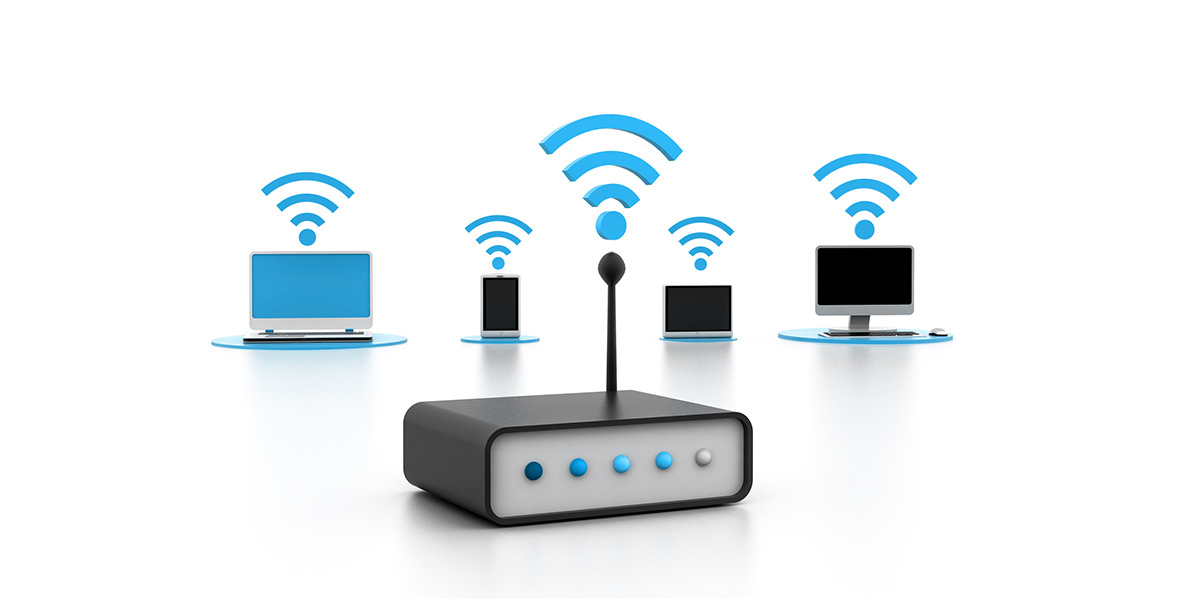
A guest network is a second Wi-Fi network on your router, with its own name and its own password. Visitors get the internet. They don’t get your NAS or the laptop with the family photos on it. Most home routers can do this. On the ones that can, it takes about two minutes once you know which menu it hides in.
- Where it lives
- In the router’s settings pages or its app, usually called Guest Network or Guest Access.
- The one setting that matters
- Leave anything like “allow guests to access my local network” switched off.
- What guests still share
- Your internet connection and your public IP address.
- No guest option?
- BT’s Smart Hub 2 has none for home customers. A second router fixes it.
Before you start
You need to be signed in to the router, and that takes the router password, not the Wi-Fi one. If you have never changed it, it’s on the label or in our list of default logins by brand. If it has been changed and nobody remembers it, start with finding your router password.
Decide on a name and a password for the guest network first. Both should be different from your main network. Some routers fill them in for you, which is fine, though the generated password is usually a string nobody can read off a card. There are some guest password ideas that are easier to share.
Router by router
Menu names drift between firmware versions, so treat these as where to look rather than an exact click path. If your screen differs, search the settings for the word “guest”.
Jump to: TP-Link · Deco · NETGEAR · ASUS · Linksys · Virgin Media · BT · Sky · eero · Google Nest · UniFi
TP-Link (Archer routers)
- Sign in. Go to
tplinkwifi.netor192.168.0.1. Our TP-Link login page has the details. - Open Advanced, then Guest Network. Tick the 2.4 GHz band, the 5 GHz band or both.
- Name it and set a password. Choose WPA2 (or WPA2/WPA3) Personal and type the password. Click Save.
- Check the two boxes underneath. “Allow guests to access my local network” should stay unticked. “Allow guests to see each other” is a separate box; leave it off unless your guests need to share files with one another.
TP-Link notes that on some models the guest network can’t run at the same time as WDS bridging. If the option is greyed out, that is usually why.
TP-Link Deco
Deco mesh is set up from the app only. Open the Deco app, tap More, then Guest Network, and turn it on. Set a password before you tap Done: leave the box empty and the guest network has no password at all. The Share Wi-Fi button sends the name and password to someone by message.
NETGEAR (Nighthawk and most others)
- Sign in at
routerlogin.net. The username isadmin; the password is whatever was set when the router was installed. See the NETGEAR login page if you’re stuck. - Select Guest Network. On Nighthawk Pro Gaming models it is under Settings, then Guest Network.
- Turn on each band you want. The default names are
NETGEAR-GuestandNETGEAR-5G-Guest. Rename them, choose WPA2 and enter a password. - Click Apply.
NETGEAR puts two different things behind one checkbox: “Allow guests to see each other and access my local network”. Tick it and guests can reach your devices as well as each other’s. Leave it clear. Always. In the Nighthawk app the same thing is the Guest WiFi tile, which can also show a QR code for visitors.
ASUS
- Sign in at
asusrouter.comor the router’s address. Our ASUS login page covers it. - Click Guest Network in the left-hand menu and pick a band.
- Keep or change the generated name and password, set Authentication Method to WPA2-Personal, and click Apply.
ASUS has the most useful extras of any brand here. Access Intranet is off by default, which is what you want. Access time can switch the guest network off on its own after a set period, and Bandwidth Limiter stops a visitor’s console update from flattening everyone else. You can run up to three guest networks per band. On AiMesh systems, only the first guest network on each band can be extended to the satellite nodes.
Linksys
In the router’s web page or the Linksys app, open Guest Access (some app versions say Guest Network) and switch it on. Then edit the name and the password, which is case-sensitive. Linksys uses one guest name across every band, so you don’t get a choice there. A few older models, the E900 among them, have no guest feature at all. Login help is on the Linksys page.
Virgin Media Hub 5
- Go to
192.168.0.1and sign in with the settings password printed on the bottom of the Hub. - Open Advanced settings. Choose Enable guest network, then Modify your guest network, then Enable your guest network.
- Note the name and password. The Hub creates both for you, so write them down before you move on.
- Choose how long it stays on, then finish.
If the Hub is in modem mode, its own Wi-Fi is off and it answers on 192.168.100.1 instead. The guest network then has to come from your own router.
BT Smart Hub 2
The home version has no guest network, and BT’s Complete Wi-Fi discs can’t add one either. BT’s community advisers say the same: you need a router of your own. The business version of the hub is different and has a Public Wi-Fi section.
Sky
We couldn’t find a guest network setting in Sky’s help pages for its current hubs, and replies on Sky’s own forum point people to a second router or mesh system instead. If your Sky hub does show one, use it.
eero
In the eero app, open Settings and turn on the guest network. The app suggests a name with “Guest” on the end; the name has to differ from your main network’s. Share sends the details by message or shows a QR code. Turning the guest network off later disconnects anyone still on it.
Google Nest Wifi
In the Google Home app, open Wi-Fi, then Network settings, then Guest network. Google insists on a password. The useful part is Shared devices: pick the TV or speaker your guests should be able to cast to, and nothing else is visible to them.
UniFi
UniFi separates the two jobs. Network Isolation on the guest network keeps it away from your other networks, and the Hotspot Portal adds a sign-in page if you want one. Both take more steps than a home router, so they have their own UniFi guest portal guide.
Adding a second router behind an ISP hub
This is the usual fix for a BT or Sky customer, and it has a trap. Many routers stop isolating guests when you run them in access point mode. ASUS removes Access Intranet entirely in that mode. NETGEAR owners report the “access my local network” box ticked and greyed out. The guest network looks perfectly normal and protects nothing.
So run the new router in router mode, and move every device you care about onto it. Leave nothing on the ISP hub’s own Wi-Fi except the new router’s cable. Yes, that gives you two layers of address translation. For everyday use it makes no difference you’ll notice.
Check that it actually isolates
Don’t take the checkbox’s word for it. Test. Join the guest network on a phone and try to open a shared folder or cast something to your TV. Neither should work. A free network scanner app such as Fing is quicker. On the guest network it should find the router and nothing of yours.
Isolation also has limits worth knowing about. It isn’t a single standard, and researchers presenting at NDSS in 2026 bypassed client isolation on every router they tested. For a friend borrowing the Wi-Fi it is plenty. For devices that hold anything sensitive, the stronger answer is keeping them off any network strangers can join.
The difference between the two networks, and what a guest can still see, gets its own page: guest Wi-Fi vs main Wi-Fi. To skip reading the password out at all, make a guest Wi-Fi QR code.
Common questions
Do I actually need a guest network?
If the only people on your Wi-Fi are the people you live with, probably not. It earns its keep once someone else joins regularly, like a lodger or the teenager next door who “just needs it for a minute”, or when a NAS on the main network holds things you’d hate to lose. Ten minutes of setup. Worth it.
Can a guest network have no password?
Most routers allow it. ASUS calls it Open System, and Deco does it if you leave the password box empty. At home we wouldn’t bother: anyone in range of the house can use your connection, and whatever they do online arrives from your address. A short password on a card by the kettle does the job.
Does the guest network switch itself off?
Only if you ask it to. ASUS and Deco both have a timer, called Access time and Duration, and the Virgin Media Hub asks how long the guest network should last when you create it. Handy for a weekend visit. Baffling a month later, when a visitor’s phone says the network has vanished and nobody remembers setting a timer.
Can I see what guests are doing on it?
Roughly. Not in detail. The router’s device list shows who is connected and how much data each device used, but the pages themselves are encrypted.
Guest Wi-Fi for a café or holiday let
A password guest network is fine at home. In a business it wears thin. The password ends up chalked on a board by the till, and you still have no idea who used it. Most venues put a sign-in page in front of the guest network instead: a captive portal, which asks for an email address or a voucher code before it lets the phone online.
Home routers can’t do this. Business access points can, and UniFi has a basic one built in. If you want guest Wi-Fi with a sign-in page for customers, CaptureWiFi, which we also run, does it on UniFi hardware and keeps the email list for you.