
Almost every guide to speeding up a slow connection starts by telling you to move the router. That is somewhere around fifth on the list of things worth doing, and it only helps if your problem is wireless coverage. Plenty of slow connections have nothing to do with wireless at all.
So the first job is finding out which half of the network is actually slow. Everything after that depends on the answer.
It takes five minutes.
Split the problem in two
Your connection has two parts. There is the line from your provider to the router, and there is the network inside your house. They fail differently and the fixes have nothing in common.
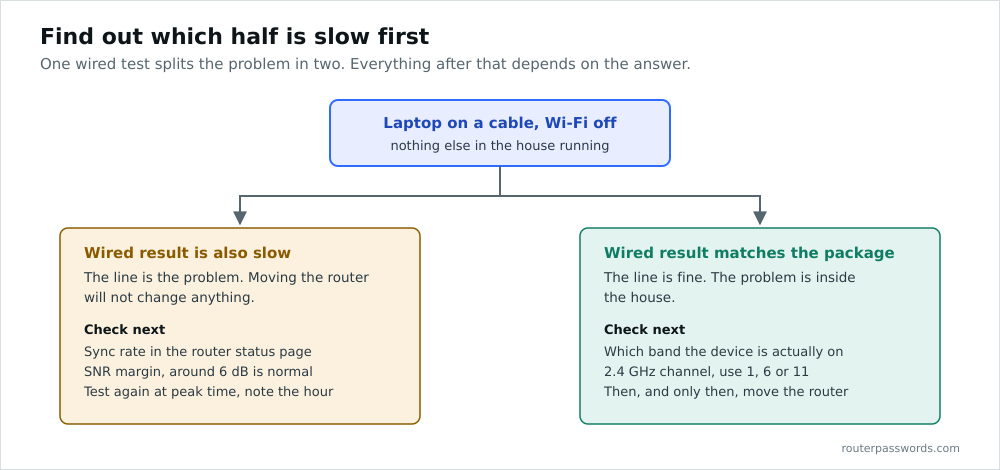
Plug a laptop into a LAN port on the router with a cable. Turn its Wi-Fi off, properly off, so it cannot quietly fall back. Close everything else in the house that might be downloading. Then run a speed test.
If the wired result roughly matches what you pay for, your line is fine and your problem is inside the house. If the wired result is also slow, no amount of moving the router will help, and you can skip most of this page and go to the line section.
We cover how to get a result you can trust in how to test your internet speed, because a lot of the numbers people quote were measured over Wi-Fi on a phone while a television was streaming.
If the wired test is slow: it is the line
Check what the router negotiated
Log into the router and find the connection status page. On DSL and fibre-to-the-cabinet it will show a sync rate, and that figure is a hard ceiling. You cannot download at 60 Mbps on a line that synced at 40, no matter what the package says.
Getting in needs the admin password rather than the wireless one. If nobody has ever changed it, look on the sticker. Worn off? Our default password directory covers 460 manufacturers.
Look at the SNR margin
The same page usually shows a signal-to-noise margin in decibels. Around 6 dB is the normal target on a stable line. Much higher and the line has backed itself off because it detected noise, which usually costs you speed.
Noise comes from somewhere. A failing extension cable, an unfiltered phone socket, a cheap USB charger near the master socket. Try the router in the test socket behind the faceplate of the master socket, with a filtered faceplate if you have one, and nothing else plugged into the line.
Test at different times
Run the wired test at nine in the morning and again at eight in the evening. A line that delivers full speed at breakfast and half of it after dinner is congested somewhere upstream, and that is your provider’s problem to fix. Keep the results, with timestamps. They are what gets a line investigated rather than dismissed.
Then phone them
Armed with the sync rate, the SNR margin and a set of timed results, the conversation goes differently. Ask specifically for a line test and for the profile to be checked, and if the line has been unstable ask whether the DLM has dropped you to a slower profile and how long it takes to recover.
If the wired test is fine: it is the wireless
Check which band you are on
Most routers broadcast on 2.4 GHz and 5 GHz. Some present them as one name and steer devices automatically, which mostly works and occasionally leaves a laptop stuck on 2.4 GHz three metres from the router.
2.4 GHz travels further through walls but is slower and vastly more congested. 5 GHz is much faster at short range and falls away quickly. If your router presents separate names, connect a device to each in turn in the same spot and compare.
Change channel
On 2.4 GHz there are only three channels that do not overlap: 1, 6 and 11. Everyone in the street is sharing them. If four neighbours are on channel 6 and you are too, moving to 1 or 11 can transform things for the cost of a setting change.
A Wi-Fi analyser app on a phone will show you what is in use around you. Pick the quietest of the three. Do not use channels 2 to 5 or 7 to 10, whatever the router’s auto setting decides, because a partially overlapping channel interferes with two neighbours instead of sharing cleanly with one.
On 5 GHz there is far more room and auto selection usually does a reasonable job.
Then move the router
Now it is worth doing. The router wants to be central and high, out in the open rather than shut in the meter cupboard or tucked behind the television where the engineer left it.
Water absorbs 2.4 GHz well. A fish tank in the wrong place makes a genuine difference, and so does a hot water cylinder. Foil-backed insulation is worse again, because it turns a stud wall into something close to a mirror.
The router usually has to live where the master socket is. A longer cable from the socket to a better position for the router costs a few pounds and beats every other coverage fix on price.
Find what is eating the bandwidth
Look at the connected devices list in the router. Most show per-device traffic. A games console downloading a hundred gigabyte update in the background will flatten everything else in the house, and it will do it silently.
One genuinely slow device can also hold up a wireless network, because time spent transmitting slowly to an old client is time not spent transmitting to anything else. If something ancient is still connecting on 802.11g, retiring it helps more than its own speed would suggest.
Extending coverage properly
If the connection is good near the router and poor at the far end of the house, you need another radio, not a faster one.
An access point on a cable is the best answer by a distance. Run Ethernet to the far end, put an access point there, give it the same network name and a different channel. Full speed, no compromise. Do this if you can get a cable there at all.
Mesh systems are the convenient version. Two or three units talk to each other wirelessly and hand devices between themselves. They work well, with the caveat that a wireless backhaul spends part of the radio’s time talking to the other node rather than to you. Most mesh kit will use a cable for the backhaul if you give it one, and it is markedly better when you do.
Powerline adapters send data over the mains. When they work they are excellent value. They need both sockets on the same ring main, plugged straight into the wall. An extension lead ruins them. Old wiring or a split consumer unit can halve the throughput or kill it outright, and you will not know which until you try. Buy from somewhere with a returns policy.
Plug-in wireless repeaters are the cheapest option and the one we would avoid. A repeater receives and retransmits on the same radio, which halves the throughput before anything else, and it typically sits halfway along a weak signal and repeats a weak signal.
When the router itself is the problem
ISP-supplied routers are built to a price. They handle a few devices adequately and start dropping connections when a family of five brings forty devices home.
Some signs point at the router rather than the line. Everything recovers after a reboot and then degrades again over a few days. The wired speed is fine while wireless is erratic in every room, not just the far ones. The device list keeps losing things that are plainly switched on. A router more than about five years old is also missing several generations of wireless improvement, and on a fast line that gap is now large.
Before replacing it, check for a firmware update. Then reboot it properly, off at the plug for thirty seconds rather than a quick power cycle.
Things that will not help
Changing your DNS servers makes pages start loading marginally sooner. It does not change your download speed by a single megabit, whatever the advert says.
Registry cleaners and browser extensions promising faster internet do nothing useful, and frequently do something unwelcome.
Buying a router with more antennas than you have devices is not a strategy either. The number of antennas has almost nothing to do with the speed you will see on a phone, because a phone has one or two radio chains and can only ever use that many spatial streams regardless of how many the router is capable of driving, which is why an eight-antenna router and a two-antenna router often measure identically from the sofa.
Common questions
Why is my Wi-Fi slower than my broadband package?
Because the package speed is measured to the router, not through it. Test with a cable to see what the line is actually delivering, then work on the wireless separately.
Does rebooting the router really help?
Sometimes, and it is a symptom worth noticing. If a reboot fixes things for a few days and then the problem returns, the router is struggling rather than the line.
Is a Wi-Fi extender worth buying?
A wired access point is much better. A mesh node is a reasonable compromise if you cannot get a cable there, and a plug-in repeater is usually a disappointment.
How do I know if my neighbours are on my channel?
A free Wi-Fi analyser app will list every network in range with its channel. On 2.4 GHz, aim for whichever of 1, 6 or 11 is least populated.